
AirMirror: AirPlay Receiver
NeoYantraVideo Players & Editors
3.621.00 Reviews
- Version
- 2.5
- Installs
- 10.00K
- Age Rating
- Everyone
Screenshots
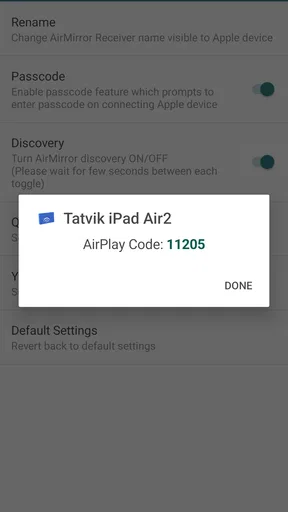
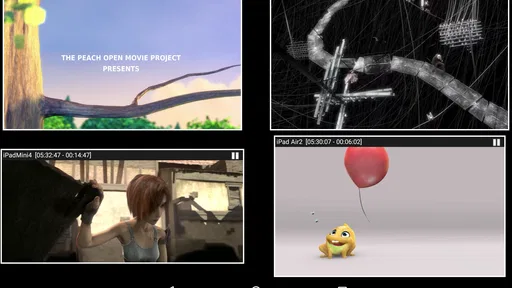
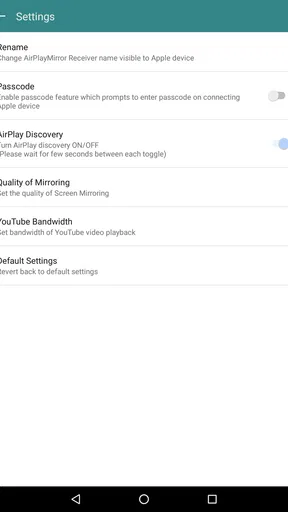
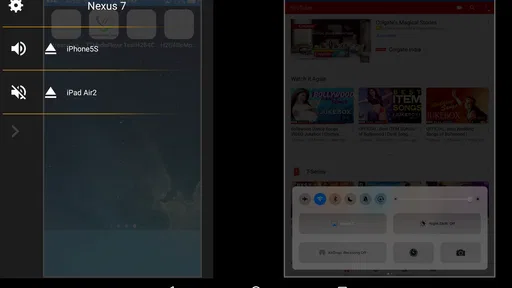
Our Review of AirMirror: AirPlay Receiver
 Analysis by Appyee
For a household with Apple devices and an Android screen, AirMirror: AirPlay Receiver offers a focused way to bridge the two. Its appeal is easy to understand: instead of replacing your phone, tablet, or television setup, it lets an Android device receive content sent from Apple devices. I like that practical role, but I would treat it as a solution for a particular mismatch between devices, not as a universal streaming hub. Whether it makes sense for you depends on how often you need that bridge and how reliably your home network handles casting.
Why the receiver role is useful
Most people looking for a screen-sharing app want to send something from one device to another with as little setup as possible. This app takes the less common direction: the Android device is the receiving screen, while an Apple device supplies the content. That distinction matters if you have an Android television or phone nearby but usually carry an iPhone or iPad. It can make an existing screen more useful without requiring you to reorganize the devices you already own.
A realistic example is showing travel photos to family after dinner. You can browse on an Apple device and put the images on a larger Android screen, keeping the phone in your hand while everyone else can see. The same arrangement can suit a short clip, a music session, or a presentation when you want to share what is already on an Apple device. The value is less about adding another media library and more about making the content you have easier to show.
Where it fits among casting options
Compared with a cable, a receiver app avoids having to connect the two devices physically, which is convenient when they sit across a room. Compared with a dedicated streaming box, it uses an Android device you may already own, although the experience depends on that device being available and ready to receive. And compared with sending a file to another device, mirroring is more immediate: you can show what is on screen without first moving or exporting it.
That convenience has a trade-off. A direct cable or a purpose-built receiver may be a better choice for a long presentation, a time-sensitive meeting, or a room where Wi-Fi is unreliable. AirMirror is most appealing when flexibility matters more than having a fixed, always-ready setup. If you only cast occasionally, an app-based receiver can be simpler than buying extra hardware; if you cast every day, a dedicated device may feel more dependable.
Small setup habits that can prevent frustration
The most useful practical check is to put both devices on the same Wi-Fi network before trying to connect. In homes with separate guest and main networks, two devices can appear to be on Wi-Fi while still being unable to find each other. I would check the network name on both screens first rather than repeatedly reopening the app or restarting the devices.
For a shared viewing session, I would also prepare the Android receiver before handing someone an Apple device to start casting. That keeps the first few minutes from turning into a round of troubleshooting in front of guests. For a presentation, test the exact content and room setup beforehand; a quick photo slideshow is a forgiving trial, while a live demonstration is not. These are simple habits, but they make a receiver app feel much less like a last-minute experiment.
It is also worth thinking about the receiving screen’s placement. A phone can work for a quick one-to-one share, but a larger Android display is more comfortable for a group. Keep the receiver where its screen is visible and its Wi-Fi connection is steady, and avoid treating movement between rooms as a guaranteed part of the workflow. Wireless casting is convenient, but walls, distance, and local network conditions can affect how smooth it feels.
Who should consider paying for it?
NeoYantra’s app sits in the video-player and editing space, though its defining job is receiving a screen share rather than editing video. It costs $4.99, so I would decide based on a real recurring need rather than the novelty of trying a casting app once. It has a 3.6 average from around 310 ratings, with over 10,000 installs; those figures suggest some interest, but they are not a substitute for checking whether your own devices and network suit the task.
The price is easiest to justify for someone who regularly owns both Apple and Android devices and wants the Android device to serve as a convenient display. It is a weaker purchase if all your screens already use the same casting system, or if you only need to show something once in a while. In those cases, a built-in option, a cable, or an existing television feature may be enough. I would also avoid buying it on the assumption that every video service behaves identically under mirroring; the app’s receiver role does not guarantee that every source app will permit the same kind of sharing.
The app is rated for Everyone, was released on February 14, 2017, and its current version is 2.4. It requires OS 11 or later. Those details help set expectations: before paying, check that the Android device you intend to use meets the requirement and that it is the device you actually want to leave available as a receiver. The app is not a replacement for a large-screen display, and the usefulness of its compatibility depends on having a suitable Android device in the first place.
One question I would ask before buying is whether this is for occasional personal sharing or for a dependable work setup. For a casual photo session or showing a clip to someone nearby, the receiver approach is a sensible fit. For a formal presentation where a dropped connection would interrupt the event, I would test the complete setup in advance and keep a wired or otherwise familiar backup. That is not a knock on the idea; it is a practical distinction between convenience and certainty.
Another useful distinction is whether you want to mirror a device or simply play a particular file. Mirroring is handy when you need to show whatever is currently on the Apple screen, including browsing through photos or moving between items. If your goal is only to watch a single file on a television, the TV’s own playback options or a dedicated media player may be more direct. Choosing the right approach depends on the task, not just on whether both devices can connect.
For a household with several people, it also helps to decide who controls the session. The person holding the Apple device can navigate and choose what appears, while the Android device acts as the shared display. That can be useful for collaborative viewing, but it may be awkward if you expect the receiver to browse or manage the source content independently. Thinking about that division of control before starting avoids expecting the app to work like a shared media library.
In short, this is best approached as a practical bridge for a mixed-device setup. It is not the obvious pick for everyone, and its value falls quickly if you have no regular reason to send content from Apple hardware to Android. But when that specific need comes up often, having a receiver ready can save the hassle of switching devices or finding another way to show the same material.
Setting Up and Getting Started
Getting started with this app is pretty straightforward, even for those who might not be the most tech-savvy. Once installed, the app guides you through a simple setup process. Just ensure your Android device and the device you're casting from are on the same Wi-Fi network, and you're good to go. I found this aspect particularly user-friendly, as it doesn't require any complex configurations or a lengthy setup, making it accessible for everyone.
Interface and Usability
The interface is clean and intuitive, which is always a plus in my book. It doesn’t bombard you with too many options, keeping things simple and straightforward. Navigating through the app is a breeze, thanks to its minimalistic design. Even if you’re using it for the first time, you’ll find it easy to figure out where everything is and how to use it effectively.
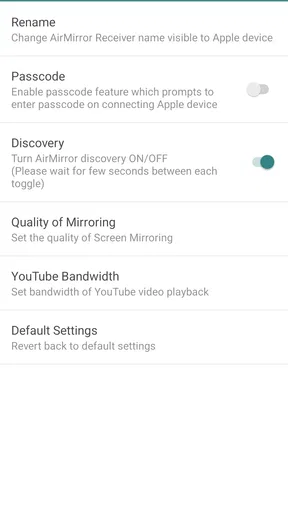
One feature I found particularly helpful was the quick access to the most frequently used settings. It’s smartly laid out, allowing users to tweak settings without having to dig deep into menus. This is a small touch, but it enhances the overall user experience significantly.
Performance and Reliability
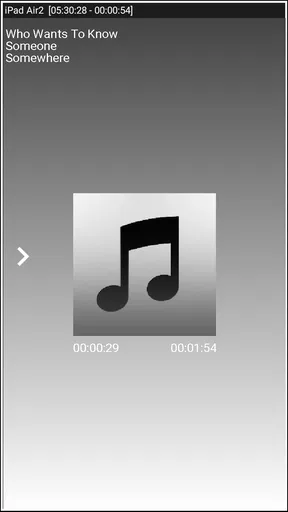
Now, let’s talk performance. Nobody has time for lagging streams, right? Thankfully, the receiver delivers a smooth streaming experience. I tested it with various types of content - from video streaming to music playback - and it handled everything without any noticeable buffering or delays. It’s reliable and consistent, which are two critical qualities for any streaming app.
During my testing, the app maintained a stable connection throughout, even when I moved my devices around the house. It’s these kinds of little things that make a big difference in everyday usage. You can start a movie in the living room and continue watching it in the kitchen without any issues.
Compatibility and Features
Compatibility is another strong suit of the receiver. It supports a wide range of devices, making it versatile and highly useful. Whether you’re casting from an iPhone, iPad, or Mac, this app has you covered. It’s also compatible with a variety of Android devices, which broadens its appeal significantly.
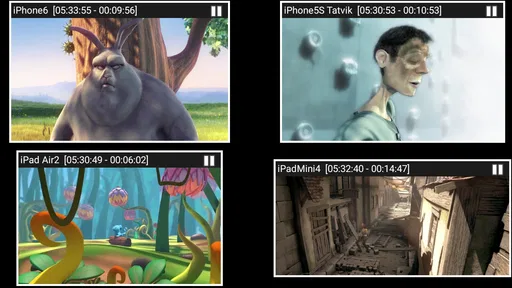
A feature that stood out to me was its ability to handle multiple forms of media. Whether it’s streaming a photo slideshow from your last vacation or sharing a quick video with friends, the app accommodates different needs effortlessly. The mirroring feature is particularly handy for presentations or when you want to share content with a larger audience without any fuss.
What Could Be Improved?
No app is perfect, and while the receiver does a lot of things right, there are a few areas for improvement. For instance, while the app is generally intuitive, a more comprehensive help section could be beneficial for those who might run into specific issues. A few more customization options, such as different themes or color settings, could also enhance the user experience by allowing more personalization.
Moreover, while the app is stable, I did encounter a couple of instances where the connection dropped momentarily. It’s not a deal-breaker, but it’s something that could be ironed out in future updates.
Final Thoughts
All in all, AirMirror: AirPlay Receiver is a fantastic tool for anyone looking to expand their streaming capabilities. It’s user-friendly, performs well, and offers a range of features that cater to different media needs. While there are small areas for improvement, they don’t overshadow the app’s overall effectiveness and ease of use.
Whether you’re a tech enthusiast or just someone who wants a simple way to stream content across devices, this app is worth checking out. With its seamless performance and broad compatibility, it’s a solid choice for enhancing your media sharing experiences.
Verdict
Strengths of AirMirror: AirPlay Receiver
- Easy to set up with intuitive interface.
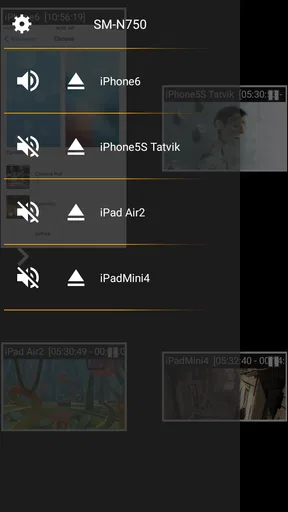
- Supports multiple device connections.
- High-quality video streaming.
- Compatible with various devices.
- Low latency for seamless mirroring.
Limitations of AirMirror: AirPlay Receiver
- Limited free version features.
- Occasional connection drops.
- Requires strong network for best performance.
- No support for older devices.
- Subscription can be pricey.
Similar Picks in This Category
View All
Google TV
Google LLC3.9

iTunes
Apple4.7

YouTube
Google LLC3.8

MX Player
Amazon Mobile LLC4.2

CapCut - Video Editor
Bytedance Pte. Ltd.3.5

PLAYit-All in One Video Player
PLAYIT TECHNOLOGY PTE. LTD.4.5
Frequently Asked Questions
What is AirMirror: AirPlay Receiver and how does it work?
AirMirror: AirPlay Receiver is an app that allows you to mirror your iOS device’s screen to another device, such as a TV or computer, using AirPlay technology. This means you can display videos, photos, or presentations wirelessly. It essentially turns the receiving device into an Apple-compatible AirPlay receiver, enhancing your viewing experience.
Is AirMirror: AirPlay Receiver compatible with all devices?
AirMirror is primarily designed for Android devices to receive AirPlay content from iOS devices. However, compatibility can vary based on device specifications and operating system versions. It's advisable to check if your Android device supports screen mirroring and ensure both devices are connected to the same Wi-Fi network for optimal performance.
Does AirMirror: AirPlay Receiver support audio streaming?
Yes, AirMirror supports both video and audio streaming. This means you can not only mirror your screen but also play audio through the connected device's speakers. This feature is particularly useful for streaming music or videos with sound, providing a comprehensive media playback experience.
Are there any privacy concerns with using AirMirror: AirPlay Receiver?
Using AirMirror requires granting certain permissions to access your device’s screen and network. While the app is designed to ensure a secure connection, it's important to download it from a trusted source and review privacy settings. Always ensure your network is secure to prevent unauthorized access during streaming.
Is AirMirror: AirPlay Receiver free to use, or does it require a subscription?
AirMirror offers a basic version for free with essential features. However, to unlock advanced functionalities or remove ads, you may need to purchase a subscription or one-time in-app purchase. Check the app's listing for detailed pricing information and be mindful of any ongoing promotions.
